This one is for anyone who landed on the post about the Zotero plugin and thought: what even is git, what's GitHub, and what's a token? Fair. Those three get said in one breath as if they were the same thing, and they're not.
You don't need to be a programmer for any of this. If you keep papers, a thesis, a manuscript, or research notes, Git is a time machine for your folder and GitHub is where a copy of it lives.
What Git actually is
Git is version control: it records the state of your folder every time you tell it to. Each record is a commit, and it holds the whole state of the folder at that moment, plus who made it, when, and why.
Which means no more thesis-final.docx, thesis-final-revised.docx, thesis-FINAL-really-fix2.docx. One file, and a history you can walk back through.
Two things make it different from Dropbox or Google Drive:
- You decide when a version is worth keeping. Dropbox saves on every change. Git saves when you say "this one matters" — so the history reads like a story instead of a pile of autosaves.
- It's distributed. Every copy of a repository carries the entire history. Your laptop isn't a cache of a server; it's a full copy. The server can disappear and your history is still right there.
A bit of history, because it explains the shape
Git was written by Linus Torvalds — same person as Linux — in April 2005. The Linux kernel was being developed with BitKeeper, a commercial tool the project was allowed to use for free. Then that permission was withdrawn, and thousands of contributors worldwide suddenly had nowhere to work together.
He wrote the replacement himself in a matter of days, with three requirements you can still see in the tool today: it had to be fast, it had to be distributed (no single server whose death stops everyone), and it had to be tamper-evident — every commit is identified by a hash of its contents, so quietly rewritten history doesn't stay quiet.
The name is British slang for "an unpleasant person". Linus was joking about himself.
Not just for code
This is the misconception that makes people walk away. Git neither knows nor cares whether your files are code. It records files. Word manuscripts, spreadsheets, scanned PDFs, survey data as CSV, images, LaTeX, Markdown notes — all fine.
There is a difference in how well it handles them, and it's worth knowing up front:
Text files
.md, .tex, .csv, .txt, .bib, code | Git can show you the change itself, line by line, and stores it very cheaply — thousands of revisions stay small. |
Binary files
.docx, .xlsx, .pdf, photos | Stored whole and safely, full history, restorable to any point — but Git can't show you what changed inside. It just says "this file changed". Each new version is stored in full too, so a large file edited often grows the repository quickly. |
In practice: a thesis in LaTeX or Markdown is the sweetest fit. A thesis in Word is still very much worth keeping this way — you lose the diff view, but you gain a complete history, the ability to go back to how it was two months ago, and a copy that isn't on your laptop. Three things a plain folder doesn't give you.
How this differs from Google Drive, Dropbox, OneDrive
Not better — different job. Drive is synced storage; Git is history you control. Plenty of people, me included, use both for different things.
| When a version is kept | Drive: automatically, on every change. Git: when you say so — so every point in the history is a state you considered complete. |
| What the history holds | Drive: a per-file version list with thin labels. Git: each commit has a message, an author, a time, and covers the whole folder at once — so "chapters one and two and the data as they were when I sent them to my supervisor" is one point, not a guess across several files. |
| Going back | Drive: one file at a time, through a menu. Git: the whole folder at once, one command, and the newer history is still there afterwards. |
| If the service disappears | Drive: you keep the files, the history goes with it. Git: every copy contains the full history — your own laptop is already a complete backup. |
| Two machines clashing | Drive: a "conflicted copy" file appears and you sort it out yourself. Git: it stops, says conflict, and shows you exactly which lines disagree. |
| What each is good at | Drive: quick sharing, typing in a document together, opening things on a phone. Git: a history you can defend, and a restore you control. |
Three places to picture
Where a change travels
Working directory
the folder you actually editgit add ↓
Staging area
a shelf: "these go in the next commit"git commit ↓
Local repository
history on your machine — it's already safe heregit push ↓
Remote (GitHub)
the copy on the internet, for backup and sharinggit pull ↑
Illustration. The staging area is the part that confuses everyone at first — think of it as the shelf where you put things before they go in the box.
The CLI: six commands cover most of it
Every bit of output below is real, from actually running these in an empty folder.
Start a repository. Once, in the folder you want tracked:
$ git init -b main
Initialized empty Git repository in /home/you/research-notes/.git/
See where you are. This is the command you'll run most, and it always tells you what to do next:
$ git status
On branch main

No commits yet

Untracked files:
  (use "git add <file>..." to include in what will be committed)
	README.md
	chapters/
Record a version. add puts things on the shelf, commit seals the box:
$ git add .
$ git commit -m "Start the research notes"
[main 3efdc78] Start the research notes
 2 files changed, 2 insertions(+)
The message matters. Write why, not what — "Revise chapter one after supervisor's comments" beats "update" every time, especially when the reader is you in six months.
Read the history:
$ git log --oneline --graph
* 9e5e330 Revise chapter one, add chapter two
* 3efdc78 Start the research notes
See what changed before you record it:
$ git diff
diff --git a/chapters/02.md b/chapters/02.md
--- a/chapters/02.md
+++ b/chapters/02.md
@@ -1 +1 @@
-Chapter two.
+Chapter two, extended.
- is what left, + is what arrived. For text, Markdown, LaTeX or code this view is a joy. For .docx or PDFs, Git stores them perfectly safely but can't show you inside — it just says "this file changed".
Or use a GUI
Nothing obliges you to use a terminal. A GUI does the same things with visible buttons. If you come from Windows and have heard of TortoiseGit — the right-click menu inside File Explorer — it's genuinely nice, but it is Windows only. The closest thing on Linux is RabbitVCS, which hooks into the Nautilus/Nemo context menu the same way.
What I installed to write this section, on Linux, is git-cola: free, open source, light, in the Ubuntu/Debian repositories (sudo apt install git-cola), and a long-standing recommendation. Here it is with uncommitted work in the folder:
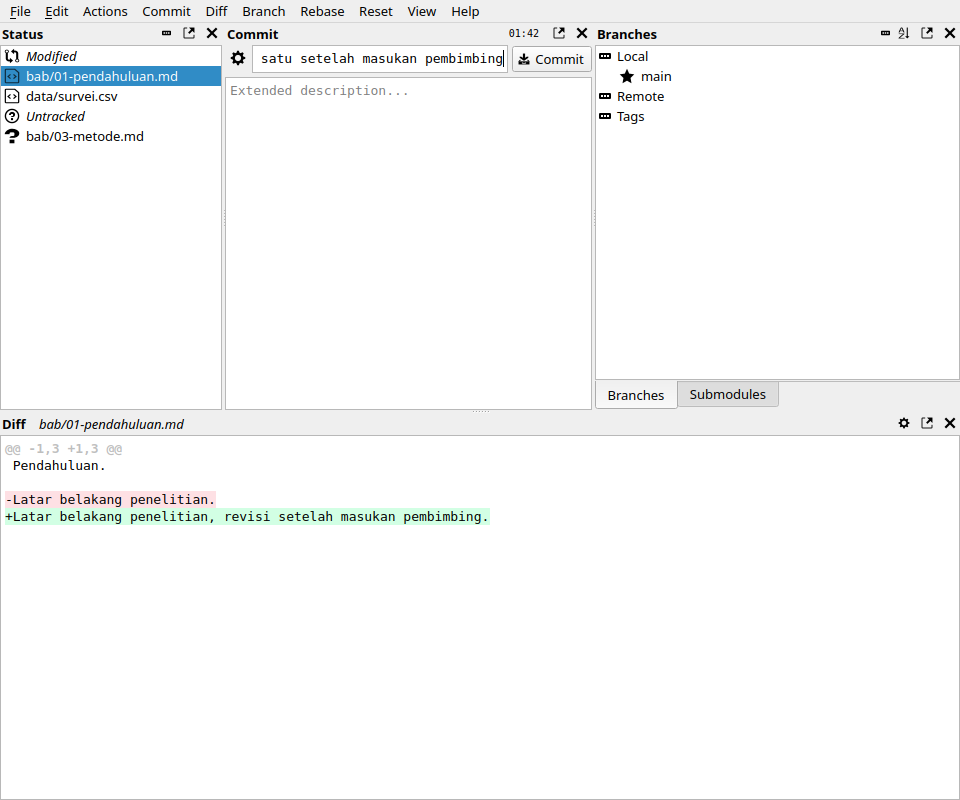
Everything we typed in the terminal is on one screen: the changed and untracked files on the left, the diff underneath (red left, green arrived), the commit message box above, and a Commit button. Click a file to choose what goes in, write the message, press Commit. That's the same git add and git commit, without the typing.
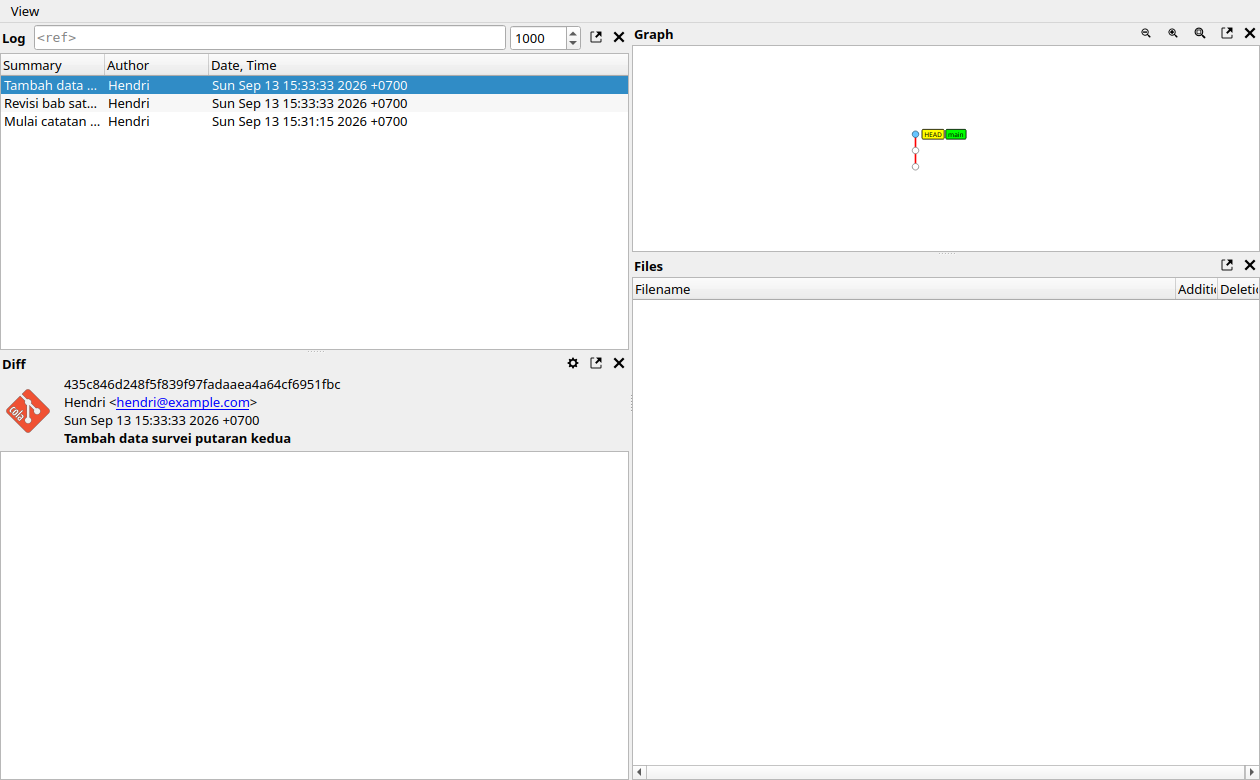
History lives in its own window (View → DAG):
Others worth knowing:
| GitHub Desktop | Easiest start, free, Windows/macOS. Commit, push, pull — enough for this whole article. |
| VS Code | If you already use it, the Source Control panel is right there: diffs, stage by line, commit, push. Nothing to install. |
| TortoiseGit · RabbitVCS | The file-manager kind: right-click a folder → commit/push. TortoiseGit on Windows, RabbitVCS on Linux. |
| GitKraken / Sourcetree | Pretty history graphs, genuinely useful once branches multiply. Free with conditions. |
| lazygit / tig | Visual, but inside the terminal. Handy over SSH. |
My advice: use a GUI day to day, but learn those six commands anyway. When something goes sideways, every answer you find online is written as a CLI command.
GitHub is not Git
This is the mix-up worth clearing. Git is the program on your machine; it works with the internet unplugged. GitHub is a service that hosts a copy of your repository online — one of several (GitLab, Bitbucket, Codeberg). Git is fine without GitHub. GitHub is meaningless without Git.
What GitHub adds on top:
| Remote hosting | A copy you can reach from anywhere. This is the part that acts as backup. |
| Private repositories | Free and unlimited. A private repo is visible only to you and whoever you invite. |
| Pull requests | Propose changes, discuss them, then merge. The heart of collaboration there. |
| Issues | A to-do and bug list attached to the repository itself. |
| Actions | Automation: on every push, run tests, build a PDF, deploy a site. |
| Releases | Tagged versions with downloadable files — where that Zotero plugin's .xpi lives. |
| Git LFS | Large-file handling. Plain Git refuses anything over 100 MB; LFS takes those. |
| Pages | Static site hosting straight from a repository. |
Context: GitHub launched in 2008 and was bought by Microsoft in 2018. Free private repositories only arrived for everyone in early 2019 — before that they were a paid feature, which is why some people still assume "on GitHub" means "public". It doesn't.
How far the free tier goes
For this kind of use, the limits are generous:
- Unlimited repositories, public and private. One for the thesis, one for the data, one for lecture notes — there's no cap on how many.
- File size in plain Git tops out at 100 MB. Anything bigger goes through Git LFS, and a free account gets 10 GiB of LFS storage plus 10 GiB of bandwidth a month.
- Repository size isn't hard-capped, but GitHub asks you to stay within a few GB for the sake of performance, and will get in touch if a repo balloons.
- Actions (automation) gives you 2,000 free minutes a month on private repositories.
For comparison, free Google Drive is 15 GB shared with Gmail and Photos. For documents and text, GitHub's allowance is more than enough — and the history comes with it.
The project-management side nobody mentions
If you're running research, a thesis, or a small project with other people, GitHub can hold the work about the work too — no extra app:
| Issues | One card per thing: "find references for chapter 2", "clean up the data table". Assign them, label them, discuss them, close them. |
| Projects | Kanban boards, tables or roadmaps built from those issues, with your own columns, dates and priorities — Trello-ish, but attached to the repository. |
| Milestones | Group issues under a target: "proposal seminar", "defence". Shows how much is done. |
| Labels | Your own markers: urgent, supervisor-feedback, waiting-on-data. |
| Discussions | For conversations that aren't tasks — questions, ideas, announcements. |
| Wiki | Documentation pages attached to the repo, when a README isn't enough. |
And because an issue can reference a commit — and a commit can reference an issue — the note about why something changed links straight to what changed. That's what makes a history worth reading a year later.
GitHub isn't the only option
Because Git is distributed, a "remote" is just an address — you choose who hosts it. The commands don't change; only the URL in git remote add does.
| GitLab | The most complete feature set for CI/CD and project management. Free in the cloud, and you can run it on your own server — which is why universities and companies with data that can't leave the building tend to pick it. |
| Bitbucket | Atlassian's, tied closely to Jira and Confluence. Sensible if your team already lives there. |
| Codeberg | Non-profit, Europe-based, no ads and no tracking. Light and clean if you'd rather step away from the corporate services. |
| Gitea / Forgejo | Self-hosted, happily on a Raspberry Pi. Your repositories at home, nobody's subscription. |
| A plain server, no application at all | Git only needs SSH. A folder on a VPS or NAS is a valid remote — git clone user@server:/path/repo.git. No web interface, but the backup works. |
I use GitHub here because it's the most widely used, the easiest to find answers about, and because that Zotero plugin is written against its API. If you already have a university GitLab or your own server, everything in this article applies unchanged.
Making a repository on GitHub
Click + in the top right → New repository. Four decisions:
New repository
Repository nameresearch-notes
Descriptionoptional
Privatepick this if it's yours alone
Publicanyone can read it
Add a README / .gitignoreleave empty if your local folder already exists
Illustration, not a screenshot. If you're connecting a folder you already have, leave the repo empty — it saves you a merge on day one.
Clone, commit, push, pull
Clone means download an existing repo, entire history included:
$ git clone https://github.com/yourname/research-notes.git
Cloning into 'research-notes'...
remote: Enumerating objects: 12, done.
Receiving objects: 100% (12/12), done.
If your folder already exists locally, you don't clone — you connect:
$ git remote add origin https://github.com/yourname/research-notes.git
$ git push -u origin main
origin is just a nickname for that remote. -u makes Git remember the pairing, so afterwards plain git push is enough.
After that, the daily rhythm is four lines:
$ git pull          # take anything new from GitHub first
$ git add .        # shelve your changes
$ git commit -m "Revise chapter two"
$ git push          # send it up
Pull before you start working, especially across two machines. If you and your other computer changed the same line, Git stops and says conflict — nothing is lost, it just refuses to guess which version is right.
So what's the token for?
When you push to a private repo over HTTPS, GitHub asks who you are. Since 2021 your account password is not accepted for that. Two ways instead:
- A personal access token — a long string you paste where a password used to go. It can be limited to one repository and one kind of permission.
- An SSH key — a key pair on your machine. Lovely for terminal work, but it cannot be used by an app that talks to GitHub's API — including that Zotero plugin.
The token, field by field, is written up separately: making a GitHub token.
If all of this sounds like a lot
You don't have to learn Git to benefit from it. The Zotero plugin I wrote uses every mechanism above — commits, pushes, history, LFS — without you typing a single command. You make a private repo once, make a token once, and it runs in the background after that.
That story is in the Zotero GitHub Sync post. But if you ever get curious about that .git folder and want to poke around yourself, the six commands above are the whole entrance.
This article was helped by Claude and Gemini.
Tulisan ini buat kamu yang nyampe ke post soal plugin Zotero terus mikir: "git itu apa sih, GitHub apa, token apa lagi?" Nggak apa-apa. Tiga hal itu sering disebut barengan padahal beda, dan di sini saya coba pisahkan pelan-pelan.
Nggak perlu jadi programmer buat pakai ini. Kalau kamu nyimpan paper, tesis, naskah, atau catatan riset — Git itu mesin waktu buat folder kamu, dan GitHub itu tempat nyimpan salinannya.
Git itu apa
Git itu version control: dia mencatat isi folder kamu setiap kali kamu bilang "catat sekarang". Tiap catatan namanya commit, dan tiap commit nyimpan keadaan lengkap folder itu pada saat tersebut, plus siapa yang bikin, kapan, dan kenapa.
Jadi kamu nggak perlu lagi punya skripsi-final.docx, skripsi-final-revisi.docx, skripsi-FINAL-BANGET-fix2.docx. Satu file saja, tapi riwayatnya bisa ditengok mundur kapan saja.
Dua sifat yang bikin dia beda dari Dropbox atau Google Drive:
- Kamu yang menentukan kapan sebuah versi dicatat. Dropbox nyimpan tiap kali file berubah. Git nyimpan pas kamu bilang "nah, yang ini penting" — jadi riwayatnya punya arti, bukan cuma tumpukan autosave.
- Distributed. Tiap salinan repositori itu lengkap dengan seluruh riwayatnya. Laptop kamu bukan "cache" dari server; dia salinan penuh. Server bisa hilang, riwayatnya tetap ada di komputer kamu.
Sedikit sejarahnya, karena menjelaskan kenapa bentuknya begini
Git dibikin Linus Torvalds — orang yang sama yang bikin Linux — pada April 2005. Waktu itu kernel Linux dikembangkan pakai BitKeeper, tool komersial yang boleh dipakai gratis. Lalu izin gratisnya dicabut, dan ribuan kontributor di seluruh dunia mendadak nggak punya tempat kerja bareng.
Linus nulis sendiri penggantinya dalam hitungan hari, dengan tiga syarat yang kelihatan jelas sampai sekarang: harus cepat, harus distributed (nggak boleh ada satu server yang kalau mati semua orang berhenti), dan harus nggak bisa dibohongi — tiap commit diidentifikasi lewat hash isinya, jadi riwayat yang diubah diam-diam bakal ketahuan.
Nama "git" itu, dalam bahasa Inggris British, artinya kira-kira "orang yang nyebelin". Linus bercanda soal itu.
Bukan cuma buat ngoding
Ini salah paham yang paling sering bikin orang mundur. Git nggak tahu dan nggak peduli isi file kamu itu kode atau bukan. Yang dia catat itu file. Naskah Word, spreadsheet, PDF hasil scan, data survei CSV, gambar, LaTeX, catatan Markdown — semuanya boleh.
Tapi ada bedanya, dan ini yang perlu kamu tahu sejak awal:
File teks
.md, .tex, .csv, .txt, .bib, kode | Git bisa menunjukkan isi perubahannya baris per baris, dan menyimpannya sangat hemat — ribuan revisi pun ukurannya tetap kecil. |
File biner
.docx, .xlsx, .pdf, foto | Tersimpan utuh dan aman, riwayatnya lengkap, bisa dikembalikan ke versi mana pun — cuma Git nggak bisa nampilin isi perubahannya. Dia cuma bilang "file ini berubah". Tiap versi baru juga disimpan penuh, jadi file besar yang sering berubah bikin repo cepat gendut. |
Praktisnya: naskah tesis di LaTeX atau Markdown = perpaduan paling enak. Naskah di Word tetap sangat layak dicadangkan begini — kamu kehilangan tampilan diff-nya, tapi kamu dapat riwayat lengkap, bisa balik ke versi dua bulan lalu, dan salinan di luar laptop kamu. Itu tiga hal yang nggak kamu punya kalau cuma menyimpan di folder biasa.
Bedanya sama Google Drive, Dropbox, OneDrive
Bukan soal mana yang lebih bagus — beda tujuan. Drive itu penyimpanan yang tersinkron; Git itu riwayat yang bisa kamu kendalikan. Banyak orang, saya termasuk, pakai dua-duanya untuk hal yang berbeda.
| Kapan versi disimpan | Drive: otomatis, tiap kali file berubah. Git: pas kamu bilang simpan — jadi tiap titik di riwayat itu keadaan yang memang kamu anggap utuh. |
| Isi riwayatnya | Drive: daftar versi per file, keterangannya seadanya. Git: tiap commit punya pesan, penulis, waktu, dan mencakup seluruh folder sekaligus — jadi "keadaan bab 1, 2, dan datanya waktu saya kirim ke pembimbing" itu satu titik, bukan tebak-tebakan lintas file. |
| Balik ke versi lama | Drive: per file, lewat menu. Git: seluruh folder sekaligus, satu perintah, dan riwayat lamanya tetap ada. |
| Kalau layanannya hilang | Drive: kamu punya file-nya, riwayatnya ikut hilang. Git: tiap salinan berisi riwayat penuh — laptop kamu sendiri sudah backup yang utuh. |
| Dua komputer bentrok | Drive: bikin file "copy yang bertentangan" dan kamu yang pusing sendiri. Git: berhenti, bilang conflict, dan menunjukkan persis baris mana yang berselisih. |
| Enaknya buat apa | Drive: berbagi cepat, kolaborasi ngetik bareng, akses dari HP. Git: riwayat yang bisa dipertanggungjawabkan, dan pemulihan yang kamu kendalikan sendiri. |
Tiga tempat yang perlu kamu bayangkan
Perjalanan satu perubahan
Working directory
folder yang kamu edit sehari-harigit add ↓
Staging area
rak sementara: "yang ini mau dicatat"git commit ↓
Repository lokal
riwayat di komputer kamu — sudah aman di sinigit push ↓
Remote (GitHub)
salinan di internet, buat backup dan berbagigit pull ↑
Ilustrasi. Staging area itu yang paling sering bikin bingung pemula — anggap saja rak tempat kamu menaruh barang sebelum dimasukkan ke kardus.
Lewat CLI: enam perintah yang menutup 90% kebutuhan
Semua output di bawah ini nyata, hasil menjalankan perintahnya beneran di folder kosong.
Mulai repositori baru. Sekali saja, di folder yang mau kamu catat:
$ git init -b main
Initialized empty Git repository in /home/kamu/catatan-riset/.git/
Lihat kondisi sekarang. Perintah ini yang paling sering dipakai, dan dia selalu ngasih tahu langkah berikutnya:
$ git status
On branch main

No commits yet

Untracked files:
  (use "git add <file>..." to include in what will be committed)
	README.md
	bab/
Catat versinya. add menaruh ke rak, commit menyegelnya:
$ git add .
$ git commit -m "Mulai catatan riset"
[main 3efdc78] Mulai catatan riset
 2 files changed, 2 insertions(+)
Pesan commit itu penting. Tulis kenapa, bukan apa — "Revisi bab satu setelah masukan pembimbing" jauh lebih berguna daripada "update".
Lihat riwayatnya:
$ git log --oneline --graph
* 9e5e330 Revisi bab satu, tambah bab dua
* 3efdc78 Mulai catatan riset
Lihat apa yang berubah sebelum kamu catat:
$ git diff
diff --git a/bab/02.md b/bab/02.md
--- a/bab/02.md
+++ b/bab/02.md
@@ -1 +1 @@
-Bab dua.
+Bab dua, dengan tambahan.
Tanda - itu yang hilang, + yang masuk. Buat file teks, Markdown, LaTeX, atau kode, tampilan ini sangat enak dibaca. Buat .docx atau PDF, Git tetap menyimpannya dengan aman tapi nggak bisa nunjukin isi perubahannya — dia cuma bilang "file ini berubah".
Atau pakai GUI
Nggak ada kewajiban pakai terminal. Yang dilakukan GUI persis sama, cuma tombolnya kelihatan. Kalau kamu datang dari dunia Windows dan pernah dengar TortoiseGit — itu memang enak (menu klik-kanan langsung di File Explorer), tapi khusus Windows. Di Linux padanan yang paling mirip namanya RabbitVCS (nempel di menu klik-kanan Nautilus/Nemo).
Yang saya pasang buat nulis bagian ini — di mesin Linux — adalah git-cola: gratis, open source, ringan, ada di repo Ubuntu/Debian (sudo apt install git-cola), dan sudah lama jadi rekomendasi umum. Tampilannya begini pas ada perubahan yang belum dicatat:
Semua yang tadi kita ketik di terminal ada di satu layar: kiri daftar file yang Modified dan Untracked, bawah diff-nya (merah yang hilang, hijau yang masuk), atas kotak pesan commit, dan tombol Commit. Klik file untuk memilih apa yang ikut, tulis pesannya, pencet Commit. Itu saja — git add dan git commit yang sama, cuma nggak diketik.
Buat menengok riwayat, git-cola punya jendela terpisah (View → DAG):
Pilihan lain yang juga sering direkomendasikan:
| GitHub Desktop | Paling gampang buat pemula, gratis, Windows/macOS. Cukup untuk commit, push, pull. |
| VS Code | Kalau sudah pakai VS Code, panel Source Control-nya sudah cukup — lihat diff, stage per baris, commit, push. Nggak perlu install apa-apa lagi. |
| TortoiseGit · RabbitVCS | Yang nempel di file manager: klik kanan sebuah folder → commit/push. TortoiseGit Windows, RabbitVCS Linux. |
| GitKraken / Sourcetree | Grafik riwayat yang cantik, berguna pas cabangnya sudah banyak. Gratis dengan syarat tertentu. |
| lazygit / tig | Di dalam terminal tapi tetap visual. Enak kalau kerja lewat SSH. |
Saran saya: pakai GUI buat kerja sehari-hari, tapi kenali enam perintah di atas. Pas ada yang aneh, jawaban yang kamu temukan di internet hampir selalu berbentuk perintah CLI.
GitHub itu bukan Git
Ini yang paling sering ketuker. Git itu programnya, jalan di komputer kamu, dan tetap jalan walau internet mati. GitHub itu layanan yang menampung salinan repositori kamu di internet — satu dari beberapa pilihan (ada GitLab, Bitbucket, Codeberg). Git bisa hidup tanpa GitHub. GitHub nggak ada artinya tanpa Git.
Yang ditambahkan GitHub di atas Git:
| Remote hosting | Salinan repositori yang bisa diakses dari mana saja. Ini bagian yang dipakai buat backup. |
| Private repository | Gratis dan tanpa batas jumlah. Repo privat cuma kelihatan oleh kamu dan orang yang kamu undang. |
| Pull request | Cara mengusulkan perubahan lalu didiskusikan sebelum digabung. Inti kolaborasi di GitHub. |
| Issues | Daftar tugas dan laporan masalah yang nempel di repo-nya. |
| Actions | Otomatisasi: tiap kali kamu push, jalankan tes, build PDF, deploy situs. |
| Releases | Versi yang ditandai plus file yang bisa diunduh — tempat file .xpi plugin Zotero itu tinggal. |
| Git LFS | Penanganan file besar. Git biasa menolak file di atas 100 MB; LFS yang menampungnya. |
| Pages | Hosting situs statis langsung dari repo. |
Sedikit konteks: GitHub berdiri 2008 dan dibeli Microsoft tahun 2018. Repo privat gratis baru dibuka buat semua orang sejak awal 2019 — sebelumnya itu fitur berbayar, dan itu sebabnya masih ada yang mengira "GitHub berarti kodenya kelihatan umum". Nggak.
Gratisnya sampai mana
Buat pemakaian seperti ini, batas gratisnya lega:
- Repo-nya nggak dibatasi jumlahnya — publik maupun privat. Bikin satu untuk tesis, satu untuk data, satu untuk catatan kuliah; nggak ada kuota jumlah repo.
- Ukuran file di Git biasa maksimal 100 MB. Yang lebih besar lewat Git LFS, dan akun gratis dapat 10 GiB penyimpanan + 10 GiB bandwidth per bulan untuk LFS.
- Ukuran repo nggak dipatok keras, tapi GitHub menyarankan tetap di bawah beberapa GB biar enak dipakai, dan akan menyapa kamu kalau sudah kelewat gemuk.
- Actions (otomatisasi) gratis 2.000 menit per bulan untuk repo privat.
Bandingkan dengan Google Drive gratis yang 15 GB dan dipakai bareng Gmail serta Google Photos — untuk file teks dan dokumen, jatah GitHub jauh lebih dari cukup, dan riwayatnya ikut.
Fitur manajemen proyek yang jarang dilirik
Kalau kamu mengerjakan riset, tesis, atau proyek kecil bareng orang lain, GitHub sekalian bisa jadi tempat mengatur pekerjaannya — tanpa aplikasi tambahan:
| Issues | Satu kartu untuk satu urusan: "cari referensi bab 2", "rapikan tabel data". Bisa ditugaskan ke orang, dikasih label, dikomentari, ditutup kalau kelar. |
| Projects | Papan Kanban, tabel, atau roadmap dari issue-issue tadi. Bisa punya kolom sendiri, tanggal, prioritas — mirip Trello atau Notion, tapi nempel ke repo-nya. |
| Milestones | Kelompokkan issue ke target: "Seminar proposal", "Sidang". Kelihatan berapa persen kelar. |
| Labels | Penanda bebas: urgent, revisi-pembimbing, tunggu-data. |
| Discussions | Ruang ngobrol yang nggak cocok jadi issue — tanya jawab, ide, pengumuman. |
| Wiki | Halaman dokumentasi yang nempel di repo, kalau README saja kurang. |
Dan karena issue bisa menyebut nomor commit — dan commit bisa menyebut nomor issue — catatan "kenapa ini berubah" nyambung langsung ke "apa yang berubah". Itu yang bikin riwayatnya berguna setahun kemudian.
GitHub bukan satu-satunya
Karena Git itu distributed, "remote" cuma sebuah alamat — dan kamu bebas memilih siapa yang menampungnya. Perintahnya sama persis; yang berubah cuma URL di git remote add.
| GitLab | Fitur paling lengkap untuk CI/CD dan manajemen proyek. Ada versi cloud gratis, dan bisa di-install sendiri di server kamu — ini yang bikin dia favorit kampus dan perusahaan yang datanya nggak boleh keluar. |
| Bitbucket | Milik Atlassian, nyambung erat dengan Jira dan Confluence. Masuk akal kalau tim kamu sudah di ekosistem itu. |
| Codeberg | Nirlaba, berbasis di Eropa, tanpa iklan dan tanpa pelacakan. Ringan dan bersih; cocok kalau kamu ingin menjauh dari layanan korporat. |
| Gitea / Forgejo | Kamu jalankan sendiri, bahkan di Raspberry Pi. Repo-nya di rumah sendiri, tanpa langganan siapa pun. |
| Server sendiri, tanpa aplikasi apa pun | Git cuma butuh SSH. Satu folder di VPS atau NAS sudah bisa jadi remote — git clone user@server:/path/repo.git. Nggak ada antarmuka web, tapi backup-nya jalan. |
Saya memakai GitHub di sini karena itu yang paling banyak dipakai, dokumentasinya paling gampang dicari, dan plugin Zotero itu memang ditulis untuk API-nya. Tapi kalau kamu sudah punya GitLab kampus atau server sendiri, konsep di artikel ini berlaku sama tanpa perubahan.
Bikin repository di GitHub
Klik tombol + di kanan atas → New repository. Yang perlu diputuskan cuma empat:
New repository
Repository namecatatan-riset
Descriptionopsional
Privatepilih ini kalau isinya pribadi
Publicsiapa pun bisa lihat
Add a README / .gitignorekosongkan kalau folder lokalmu sudah ada isinya
Ilustrasi, bukan screenshot. Kalau kamu mau menghubungkan folder yang sudah ada, biarkan repo-nya kosong — lebih sedikit urusan gabung-menggabung.
Clone, commit, push, pull
Clone itu mengunduh repo yang sudah ada di GitHub ke komputer, lengkap dengan seluruh riwayatnya:
$ git clone https://github.com/namakamu/catatan-riset.git
Cloning into 'catatan-riset'...
remote: Enumerating objects: 12, done.
Receiving objects: 100% (12/12), done.
Kalau folder lokalmu sudah ada duluan, kamu nggak clone — kamu sambungkan:
$ git remote add origin https://github.com/namakamu/catatan-riset.git
$ git push -u origin main
origin itu cuma nama panggilan buat remote-nya. -u bikin Git mengingat pasangannya, jadi setelah itu cukup git push saja.
Setelah tersambung, ritme hariannya cuma ini:
$ git pull          # ambil perubahan dari GitHub dulu
$ git add .        # taruh perubahanmu ke rak
$ git commit -m "Revisi bab dua"
$ git push          # kirim ke GitHub
Pull dulu sebelum kerja, terutama kalau kamu pakai dua komputer. Kalau kamu dan komputermu yang lain mengubah baris yang sama, Git bakal bilang conflict dan berhenti — nggak ada yang hilang, dia cuma minta kamu memutuskan versi mana yang benar.
Terus token-nya buat apa?
Pas kamu push ke repo privat lewat HTTPS, GitHub nanya kamu siapa. Dan sejak 2021, password akun nggak lagi diterima untuk itu. Ada dua cara:
- Personal access token — string panjang yang kamu tempel sebagai pengganti password. Bisa dibatasi ke satu repo dan satu jenis izin.
- SSH key — sepasang kunci di komputermu. Enak buat kerja sehari-hari lewat terminal, tapi nggak bisa dipakai aplikasi yang ngomong ke API GitHub — termasuk plugin Zotero itu.
Cara bikin token-nya, kolom demi kolom, saya tulis terpisah: bikin GitHub token.
Kalau semua ini terasa berlebihan
Kamu nggak harus menguasai Git buat memanfaatkannya. Plugin Zotero yang saya tulis itu memakai semua mekanisme di atas — commit, push, riwayat, LFS — tanpa kamu perlu mengetik satu perintah pun. Kamu cukup bikin repo privat sekali, bikin token sekali, dan sisanya jalan sendiri di latar belakang.
Ceritanya ada di post soal Zotero GitHub Sync. Tapi kalau nanti kamu penasaran kenapa ada file bernama .git di folder itu, dan pengin ngulik sendiri — enam perintah di atas sudah cukup buat mulai.
Artikel ini dibantu oleh Claude dan Gemini.